Delivery charges by area
Orders and delivery · Updated 23 November 2026 · 2 min read
Charge inside and outside the city, add free delivery over an amount, and show it at checkout.
Delivery charges are worked out from two things: whether the buyer's city is inside city or outside city, and the weight of the parcel. You set a price list for each.
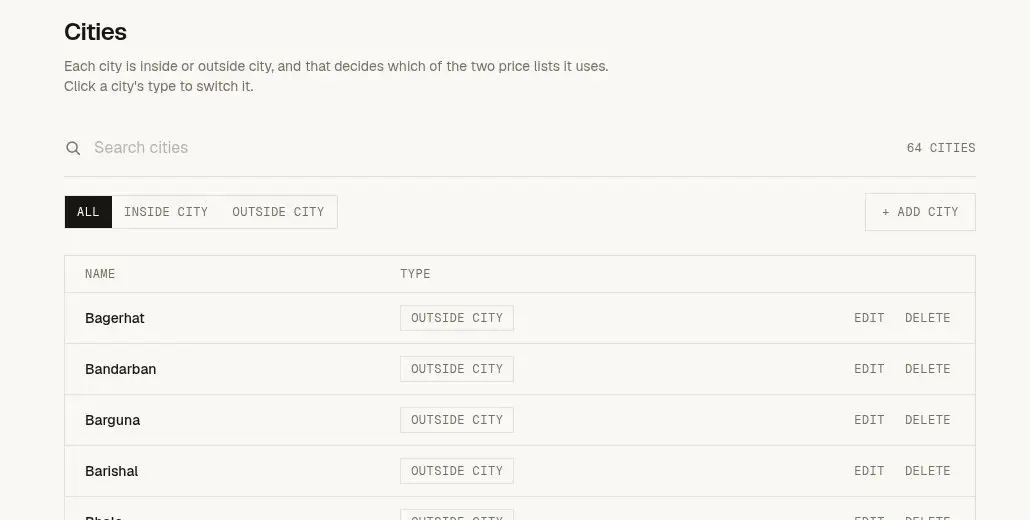
1. Choose which cities are inside city
Go to Settings › Shipping.
Under Cities, every city is Inside city or Outside city. Select a city's type to switch it. For a Dhaka-based shop, set Dhaka as inside city.
Missing a city? Select + Add city.
2. Set the prices by weight
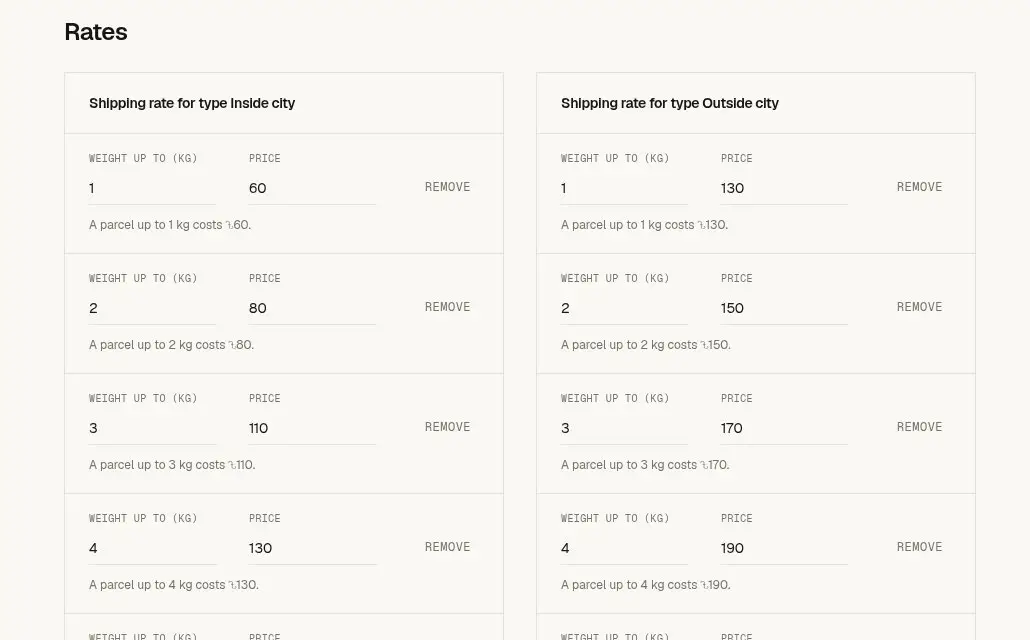
Under Rates, there's a list for Inside city and one for Outside city.
Each row is a step: a parcel up to that weight costs that price. For example: up to 1 kg ৳60, up to 2 kg ৳80.
Select + Add a step for heavier parcels. Parcels heavier than the last step aren't priced, so add steps as far as you need.
3. Set a default weight
Default weight is used for products that have no weight of their own (for example 0.5 kg). Set real weights on heavy products in their Size and weight fields.
Free delivery
- Over an amount, for a sale: in Promotions, tick Also free shipping on a rule and set Minimum order for free shipping.
- With a code: make a coupon with the discount type Free shipping in Coupons.
Tip: Checkout shows the delivery charge as soon as the buyer picks a city, so there are no surprises.