Ring up a walk-in sale
Point of sale · Updated 23 November 2026 · 2 min read
Sell in your shop from the same stock as your website.
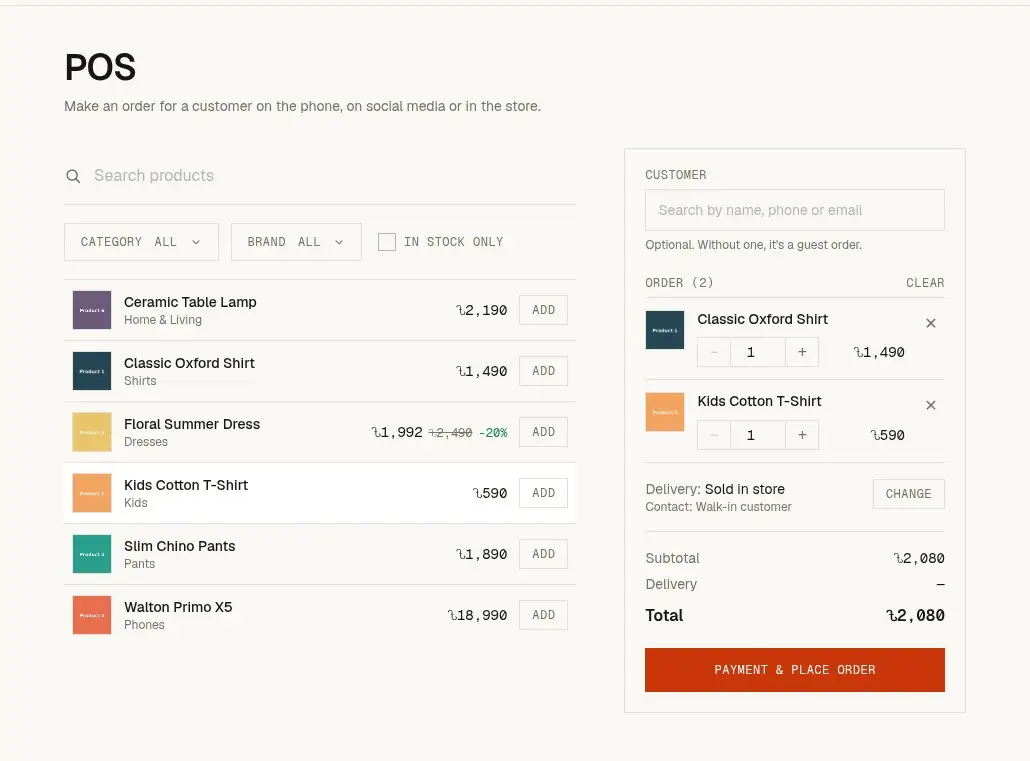
POS makes an order for a customer in front of you. It uses the same products, prices, promotions and stock as your website, so your stock is always right.
Make the sale
Go to POS.
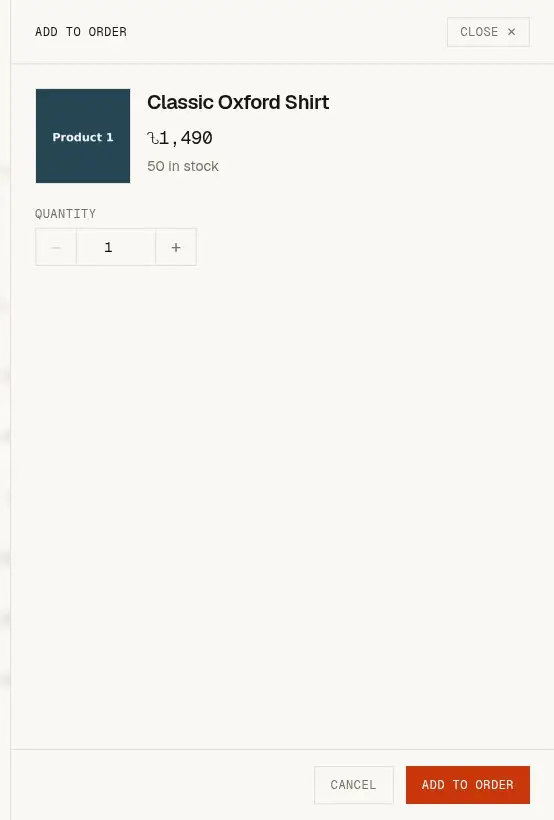
Find products with search, or filter by Category and Brand. Select Add. For a product with sizes or colours, pick the variant and quantity, then Add to order.
Change quantities with − and + in the order on the right.
Optional: search the Customer by name, phone or email. Without one, it's a guest order ("Walk-in customer").
Delivery shows Sold in store: no delivery fee and no courier.
Select Payment & place order, check the total, add a coupon or a lower Final price if you give a discount, and choose Delivered under Start as.
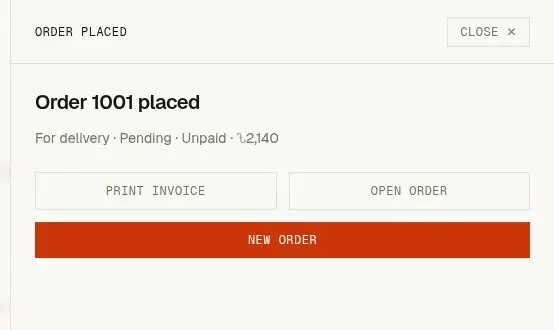
Select Place order.
Start as Delivered
For an item handed over in the shop, start the order as Delivered: the stock is sold and the cash is recorded as paid in one step. The customer gets no email or SMS for a sale in the store.