Connect Nagad to your store
Payments · Updated 23 November 2026 · 2 min read
Take Nagad payments with your Nagad merchant account.
Before you start
You need a Nagad merchant account enabled for online payments, and three details Nagad gives merchants: the merchant ID, the public key and your private key.
Connect Nagad
Go to Settings › Payment.
Open the Nagad tab.
Fill in Merchant ID, Public key and Private key. Paste the keys exactly as Nagad sent them.
Turn off Test mode when you're ready to take real payments.
Turn on Active, then select Save.
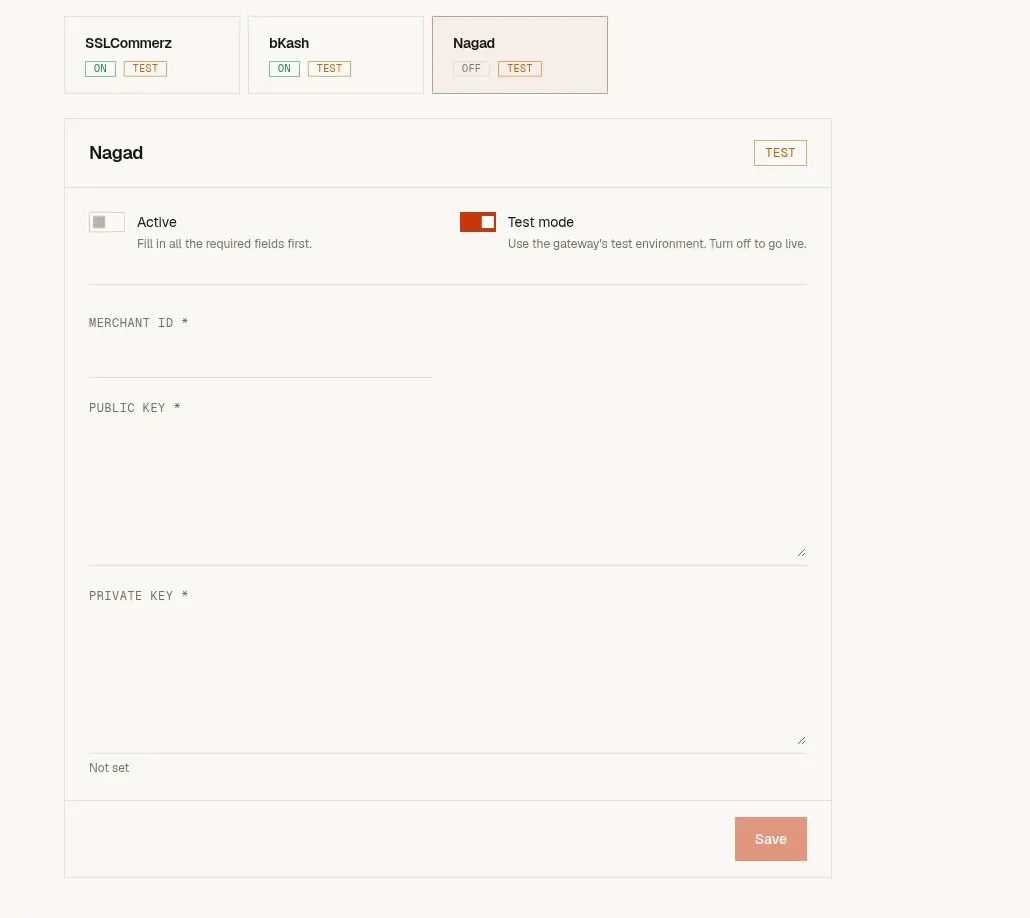
Active only turns on once all the details are filled in. After you save, the private key is stored encrypted and never shown again. The form just says Saved.
Test it
Open your store in a private window, buy something cheap and pay with Nagad. The payment shows on the order and in your Nagad merchant account.
Common questions
Nagad doesn't show at checkout
Check that Active is on and saved, and that Test mode is off for real payments. An extra space or a missing line in a key is the most common mistake: paste the keys again.
How do I refund a Nagad payment?
Refund it in your Nagad merchant panel, then record it on the order. See Refund an order.