Logo, colours and fonts
Store and themes · Updated 23 November 2026 · 2 min read
Make the store look like your brand.
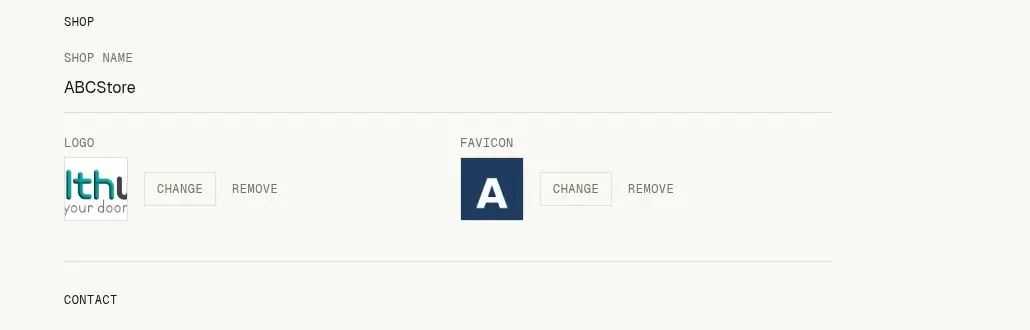
Add your logo and favicon
Go to Settings › Basic.
Under Logo, select Change and pick an image from your media library, or upload a new one.
Do the same for Favicon, the small icon in the browser tab. A square picture works best.
Check your Contact details on the same page, then save.
Change colours, fonts and more
Go to Pages › Customize.
Pick a group on the left: Colours, Fonts, Shape and spacing, Buttons, Product card, Header, Announcement bar, Footer and more.
Change a setting. The preview on the right shows your store with sample content, and outlines the part you're changing.
Use Full preview to see the whole store on a computer or phone.
Select Publish. Changes are saved as a draft as you go, and shoppers only see them after you publish.
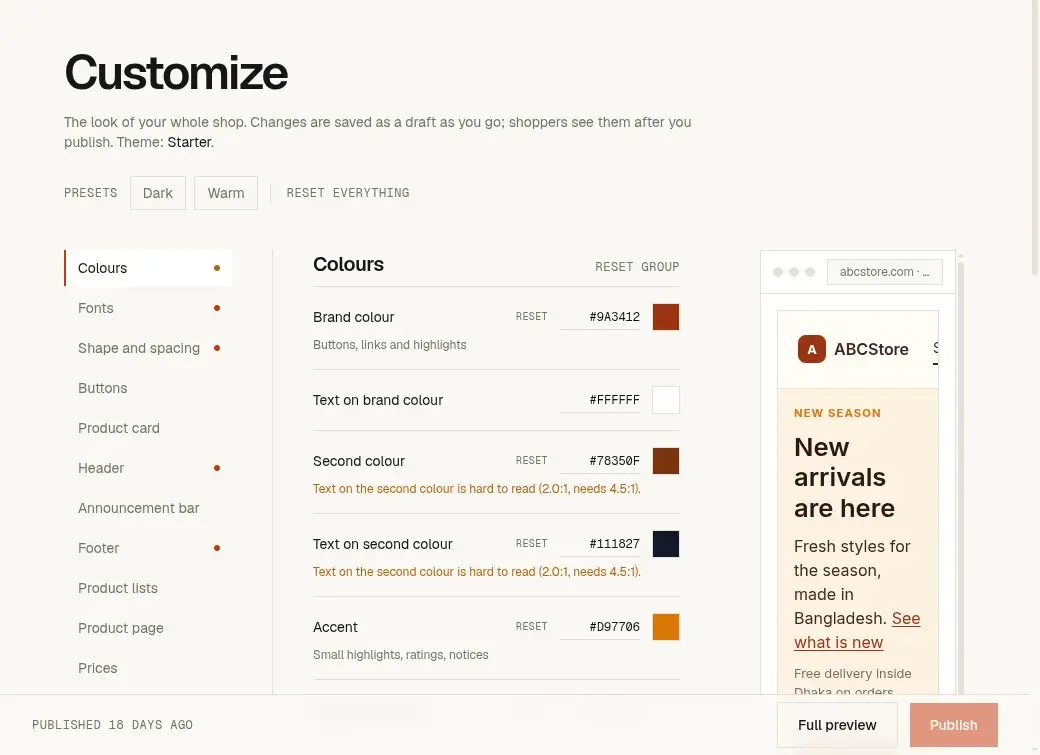
Tip: Start from a preset (like Dark or Warm), then change just your brand colour. If a colour is marked Hard to read, pick a darker or lighter one so text stays readable.
Want to start over? Reset group puts one group back to the theme's defaults, and Reset everything resets them all. Discard throws away changes you haven't published.