Invite a team member
Account and team · Updated 23 November 2026 · 1 min read
Give staff their own login to your store.
Each person on your team signs in with their own account, so you can see who did what in the order timeline and history.
Invite someone
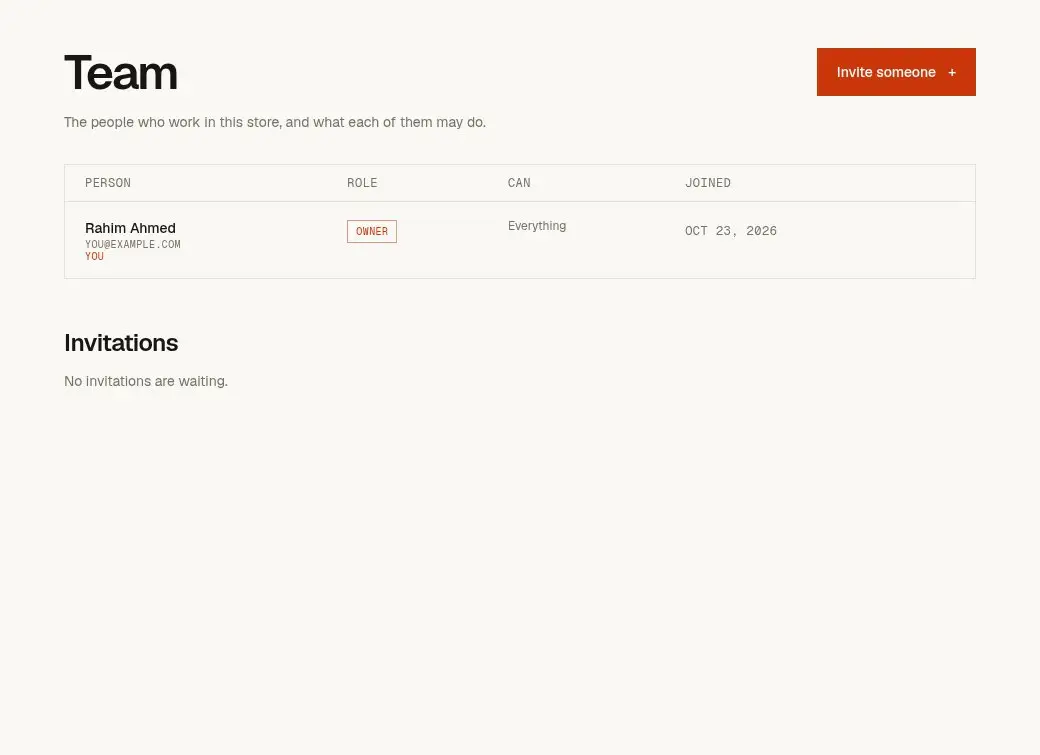
Select Settings at the bottom of the menu, then Team.
Select Invite someone.
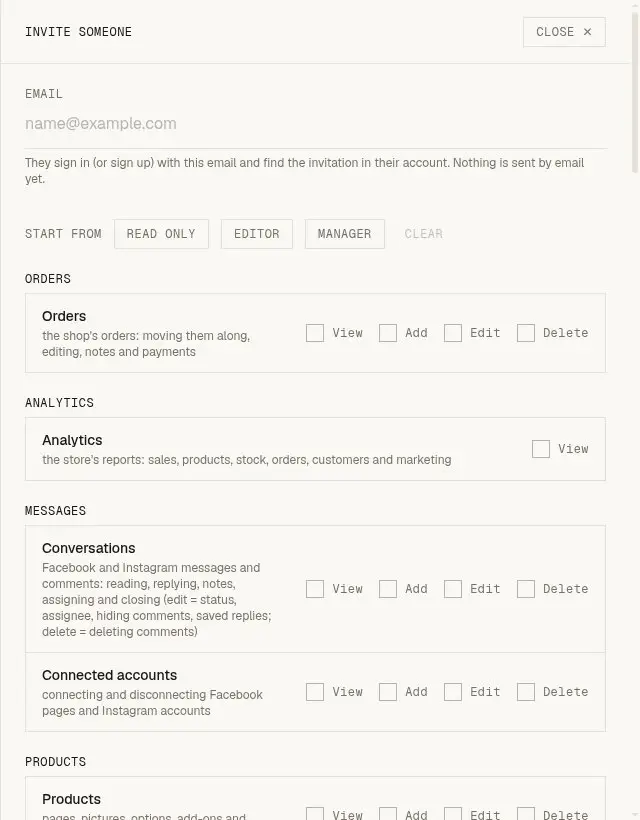
Type their Email.
Choose what they may do: start from Read only, Editor or Manager, then tick or untick single items. See Choose what staff can see.
Send the invitation.
How they join
They sign in (or sign up) with that same email and find the invitation in their account, under Invitations. Tell them to look there: no email is sent for invitations yet. Once they accept, they appear in Team and you get a notification.
Your plan's limit
Team members count the people in your team plus invitations still open. Settings › Plan and usage shows your limit.